
How to set your event location
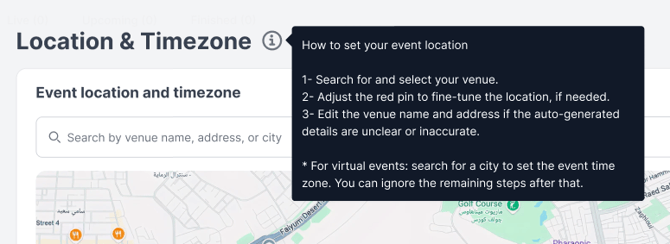
Step 1 — Search for your venue
- Click the search bar labeled "Search by venue name, address, or city".
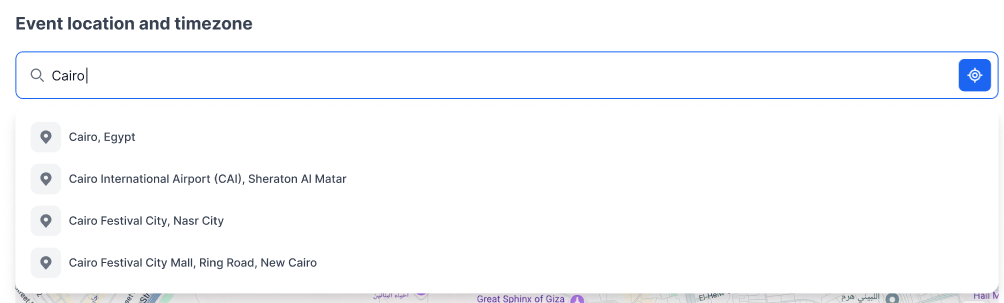
- Start typing your venue name, address, or city.
- A dropdown list of suggestions will appear. Click the correct venue from the list to select it.
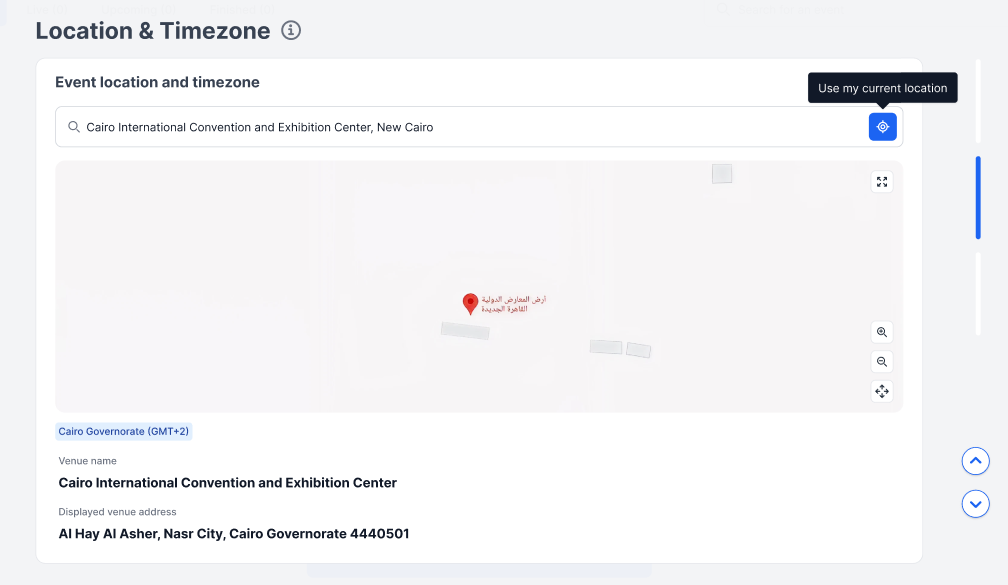
The map will update automatically with a red pin placed on your selected venue. The following fields will be auto-populated below the map:
- Timezone — detected automatically based on the venue location (e.g. Cairo Governorate GMT+2)
- Venue name — the name of the selected venue
- Displayed venue address — the full address of the venue
Tip: Use your current location by clicking the blue location button (📍) on the right side of the search bar. A tooltip will confirm: "Use my current location." 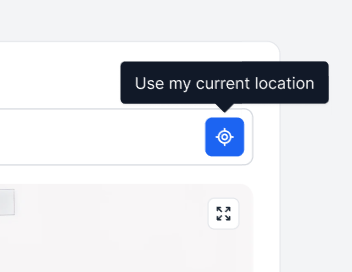
Step 2 — Fine-tune the pin location (if needed)
If the red pin is not placed exactly on your venue, you can adjust it manually:
- Click and drag the red pin on the map to the correct position.
- If you move the map and lose sight of the pin, click the ⚠ Re-center button that appears on the map to bring the pin back into view.
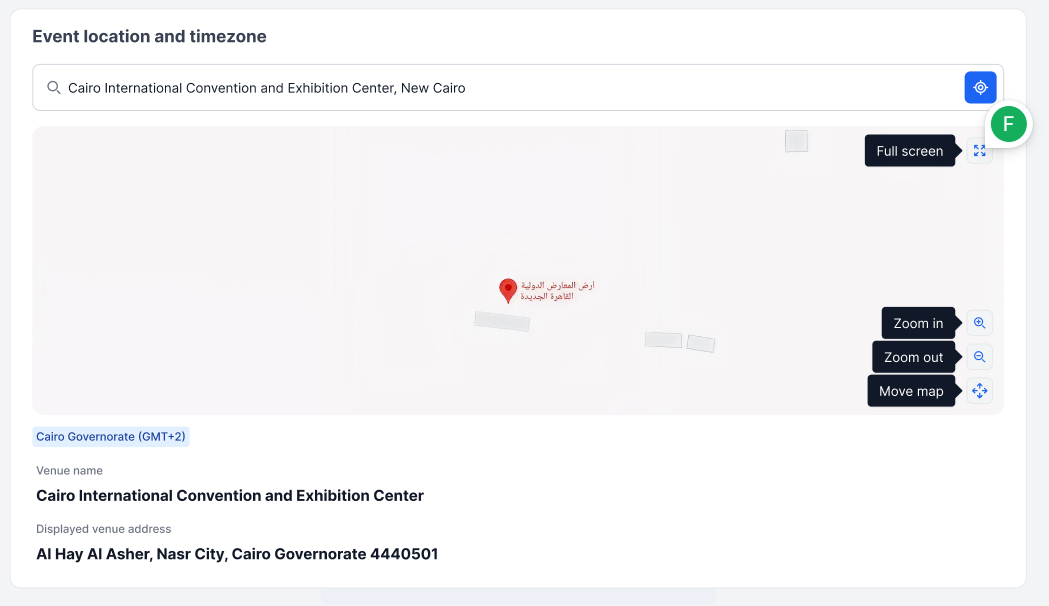
Map controls:
| Button | Action |
|---|---|
| ⤢ Full screen | Expand the map to full-screen view |
| + Zoom in | Zoom in on the map |
| - Zoom out | Zoom out on the map |
| ✛ Move map | Pan/move the map in any direction |
To zoom using your keyboard and mouse: Hover over the map and use Cmd + scroll (Mac) or Ctrl + scroll (Windows) to zoom in and out. A hint overlay will appear on the map, reminding you of this shortcut. 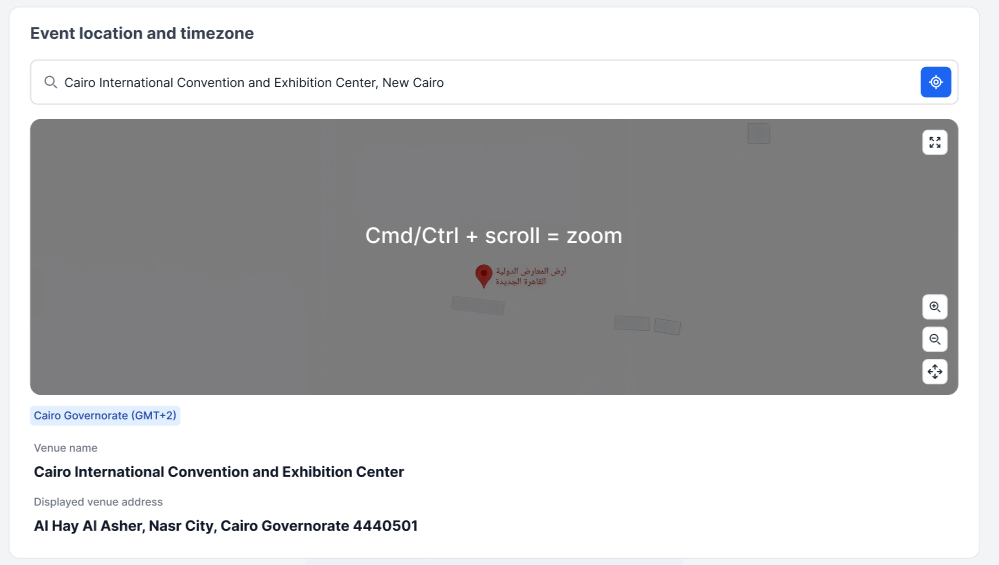
In full-screen mode: Directional arrow buttons (↑ ↓ ← →) appear to help you navigate the map.
Step 3 — Edit venue name and address (if needed)
If the auto-generated venue name or address is unclear or inaccurate, you can edit them manually:
- Click on the Venue name field below the map — it becomes editable.
- Type the correct venue name.
- Click on the Displayed venue address field and update it if needed.

Note: The venue name and address are displayed publicly on your event landing page. Make sure they are accurate and clear for attendees.
For virtual events
If your event is fully virtual:
- Search for the city where your organization is based or where the event is being hosted from.
- Select the city from the dropdown to set the correct timezone.
- You do not need to adjust the pin or edit the venue details — you can proceed to the next step.
Saving
MICEtribe auto-saves your location settings as you work. You will see "Saving..." while it saves, followed by "✅ Saved" when complete. 
